How to Deposit on Viper Play Using Maya: Step-by-Step Walkthrough
How to Deposit on Viper Play Using Maya: Step-by-Step Walkthrough
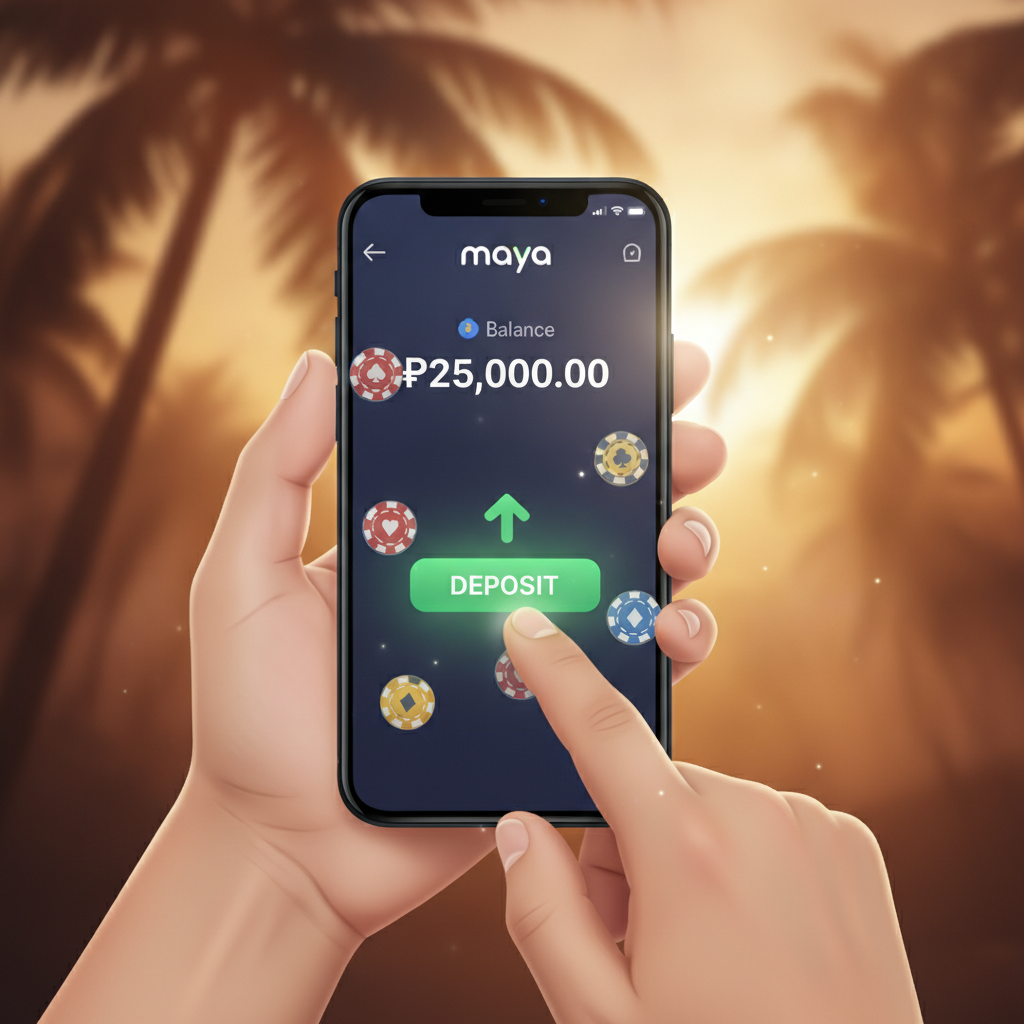
Maya is one of the most popular e-wallet options for Filipino players funding their Viper Play account. If you already have Maya installed on your Android phone and pesos loaded, depositing into Viper Play is straightforward—most PHP 100–500 deposits reflect in your casino balance within minutes. This walkthrough covers every step, from linking your Maya account in the cashier to troubleshooting common errors like "Payment declined" or "Transaction timeout."
This guide is for players 21 years and older. Only deposit money you can afford to lose.
Linking Your Maya Account in the Viper Play Cashier
Before you can push pesos from Maya into Viper Play, you need to open the platform's cashier and select Maya as your payment method.
- Log in to Viper Play on your mobile browser or app. Tap the menu icon (usually three lines in the upper corner) and look for "Deposit," "Cashier," or "Wallet."
- Tap Deposit. You'll see a list of payment channels: GCash, Maya, bank transfer via InstaPay or PESONet, and sometimes over-the-counter options.
- Select Maya from the list. Viper Play will display the minimum and maximum deposit amounts—typically PHP 100 minimum and PHP 50,000 maximum per transaction, though limits can vary by account status.
- Enter the amount in pesos you want to deposit. Most players in Metro Manila and the provinces start with PHP 100, 200, or 500 to test the waters or fund a session on slots, live dealer tables, or sports betting on PBA and NBA games.
- Tap Continue or Confirm. Viper Play will redirect you to a Maya payment gateway or open the Maya app if you have it installed. If you're on mobile web and Maya is installed, the handoff is usually automatic. If not, you'll see a Maya web checkout page.
Entering Amount in Pesos and Confirming the Maya OTP
Once you land on the Maya checkout screen, the deposit amount you entered should already be pre-filled. Double-check that the peso figure matches what you intended, then proceed with authentication.
- Log in to Maya if prompted. Use your Maya PIN, fingerprint, or face unlock, depending on your device and Maya app settings.
- Review the transaction details. You'll see:
- Merchant name: Viper Play or a payment processor name
- Amount: The PHP total you're depositing
- Maya account balance: Confirm you have enough pesos loaded; if your balance is too low, the transaction will fail immediately
- Tap Pay or Confirm. Maya will send a one-time password (OTP) to the mobile number linked to your Maya account. This typically arrives as an SMS within a few seconds.
- Enter the OTP in the Maya checkout screen. Some versions of the Maya app auto-read the SMS and fill the OTP for you; if not, manually type the six-digit code.
- Wait for confirmation. After submitting the OTP, you'll see a success message in the Maya app or web page—something like "Payment successful" or "Transaction complete." You'll also receive an SMS receipt from Maya summarizing the transaction.
- Return to Viper Play. The payment gateway will redirect you back to the Viper Play cashier or home screen. Your updated peso balance should appear shortly.
How Long It Takes for PHP 100–500 Deposits to Reflect
Maya deposits on Viper Play are usually instant to five minutes. Here's what to expect for typical deposit amounts:
- PHP 100–500: In most cases, the pesos appear in your Viper Play wallet within one to two minutes after you confirm the OTP in Maya. During off-peak hours—early morning or midday on weekdays—processing can be even faster.
- Peak hours: If you deposit during peak times (evening or weekends when many Filipino players are online for PBA or NBA betting, bingo, or jackpot slots), processing may stretch to three to five minutes. This is normal; the platform and payment processor handle higher volumes.
- Still pending after 10 minutes? Check your Maya transaction history. If Maya debited your account but Viper Play hasn't credited you, screenshot both the Maya receipt and your Viper Play cashier screen, then contact Viper Play customer support through live chat or the contact options listed on their site.
Most delays stem from temporary connectivity issues between the payment gateway and Viper Play's back-end system, not from lost funds. Players in the provinces sometimes experience slower mobile data speeds, which can add a minute or two to the handoff.
Troubleshooting 'Payment Declined' or 'Transaction Timeout' Errors
Even with a funded Maya account and correct OTP, you may occasionally hit a snag. Here's how to diagnose and fix the most common Maya deposit errors on Viper Play.
Payment Declined
Possible causes:
- Insufficient Maya balance. Double-check your Maya app. If your available balance is below the deposit amount plus any Maya transaction fee (rare for e-wallet deposits, but always verify), the payment will fail.
- Daily or monthly Maya limit reached. Maya imposes sending limits based on account verification level. Unverified accounts have lower caps; fully verified accounts enjoy higher limits. Check the Maya app's "Account Limits" section.
- Card or bank link issue. If your Maya wallet is funded by a linked credit card or bank account, and that funding source is blocked or expired, Maya will decline outbound payments. Update your funding source in the Maya app.
- Merchant restriction. Occasionally Maya flags certain merchant categories—like online gaming—based on your account settings or compliance rules. Contact Maya customer service if you suspect this.
How to fix it:
- Top up your Maya wallet with enough pesos to cover the deposit.
- Verify your Maya account fully (upload valid ID in the Maya app) to raise limits.
- Wait 24 hours and retry if you've hit a daily cap.
- Try depositing a smaller amount—PHP 100 instead of PHP 500—to test whether the issue is amount-related.
Transaction Timeout
Possible causes:
- Slow mobile connection. If you're on unstable 3G or patchy 4G, the OTP submission or payment confirmation may time out before reaching Maya's servers.
- OTP expired. Maya OTPs are typically valid for two to three minutes. If you wait too long to enter the code, the session expires and the transaction fails.
- Browser or app cache. Outdated cookies or cached data in your mobile browser (Chrome, Safari) or the Viper Play app can interfere with the redirect loop between Viper Play and Maya.
How to fix it:
- Switch to a stronger internet connection. Move closer to your Wi-Fi router, or toggle airplane mode on and off to refresh your mobile data.
- Request a new OTP and enter it immediately. Don't let the code sit in your messages—type it as soon as it arrives.
- Clear your browser cache (Settings > Privacy > Clear browsing data) or, if using the Viper Play Android APK, clear the app's cache under Android Settings > Apps > Viper Play > Storage > Clear cache.
- Restart the deposit process from scratch. Go back to the Viper Play cashier, select Maya again, and try once more.
If the error persists after three attempts, contact Viper Play support. Provide your Maya transaction reference number (found in the Maya app under "Activity" or "Transactions") so they can trace the payment.
21+ Only – Deposit Responsibly
Viper Play is intended for players 21 years of age and older. Before you load pesos via Maya, set a budget and stick to it. Only deposit money you can afford to lose, and never chase losses with larger or more frequent deposits.
If you need help managing your play, consider setting a daily or weekly deposit limit in your Viper Play account settings. Many online casinos and sportsbooks offer self-exclusion and cooling-off tools—check Viper Play's responsible-gambling page for details.
Remember: slots, live dealer games, and sports betting on PBA, NBA, and volleyball all carry risk. There are no guaranteed winnings or risk-free plays. Treat every deposit as entertainment spending, and keep your banking details secure.
Final Tips for Smooth Maya Deposits on Viper Play
- Keep your Maya app updated. Outdated versions sometimes have trouble communicating with payment gateways.
- Double-check the deposit amount. Once you confirm the OTP, the transaction is final; Viper Play and Maya don't reverse completed deposits.
- Save your receipts. Screenshot every Maya transaction confirmation. If a dispute arises, you'll have proof of payment.
- Watch for fees. Maya-to-merchant transfers for online gaming are usually free on the Maya side, but always review the breakdown before tapping "Pay."
For players who prefer GCash, Viper Play also supports that e-wallet alongside InstaPay and PESONet bank transfers. Each method has slightly different processing times and limits, but Maya remains one of the fastest and most reliable for mobile-first Filipino bettors.
Summary: Depositing on Viper Play using Maya takes just a few taps—select Maya in the cashier, enter your peso amount, confirm the OTP, and watch your balance update in one to five minutes. If you encounter a "Payment declined" or "Transaction timeout" error, check your Maya balance, verification status, and internet connection, then retry. Always play responsibly, only deposit what you can afford, and reach out to Viper Play support if your pesos don't arrive within 10 minutes.
For players 21+. Gamble responsibly and within your means.